Clay renders in Blender, and clay models an AI can read
A clay render shows form without the distraction of materials. It's also the best starting point for an AI concept render, as long as the clay model carries a few hints. Here's the classic setup first, then what we learned from turning clay models into concept images.
Workbench, the fast way
Workbench is the engine behind Solid mode. It renders in a second and suits massing studies.
- In Render Properties, set the engine to Workbench.
- Under Lighting, pick Studio. Under Color, pick Single and a light warm grey.
- Tick Shadow and Cavity. Cavity darkens creases and lifts edges, so windows and setbacks read clearly.
- Render with F12, or use View > Viewport Render Image from the camera.
Cycles or EEVEE, the nicer way
- Add a Sun light and a sky in the World settings (a Sky Texture, or a plain bright colour for a studio look).
- In View Layer Properties, open Override and set Material to a white or light grey Principled BSDF with roughness around 0.6.
- Material override also turns glass grey. For readable windows, skip the override and give every material a white base colour except the glass, which keeps a dark one.
- Lower the Sun's angle for long shadows. A low sun from the side shows depth in a facade far better than light from behind the camera.
Clay models for AI renders
An AI render starts from what the camera sees. These are the hints that make a difference.
Colour is your material brief
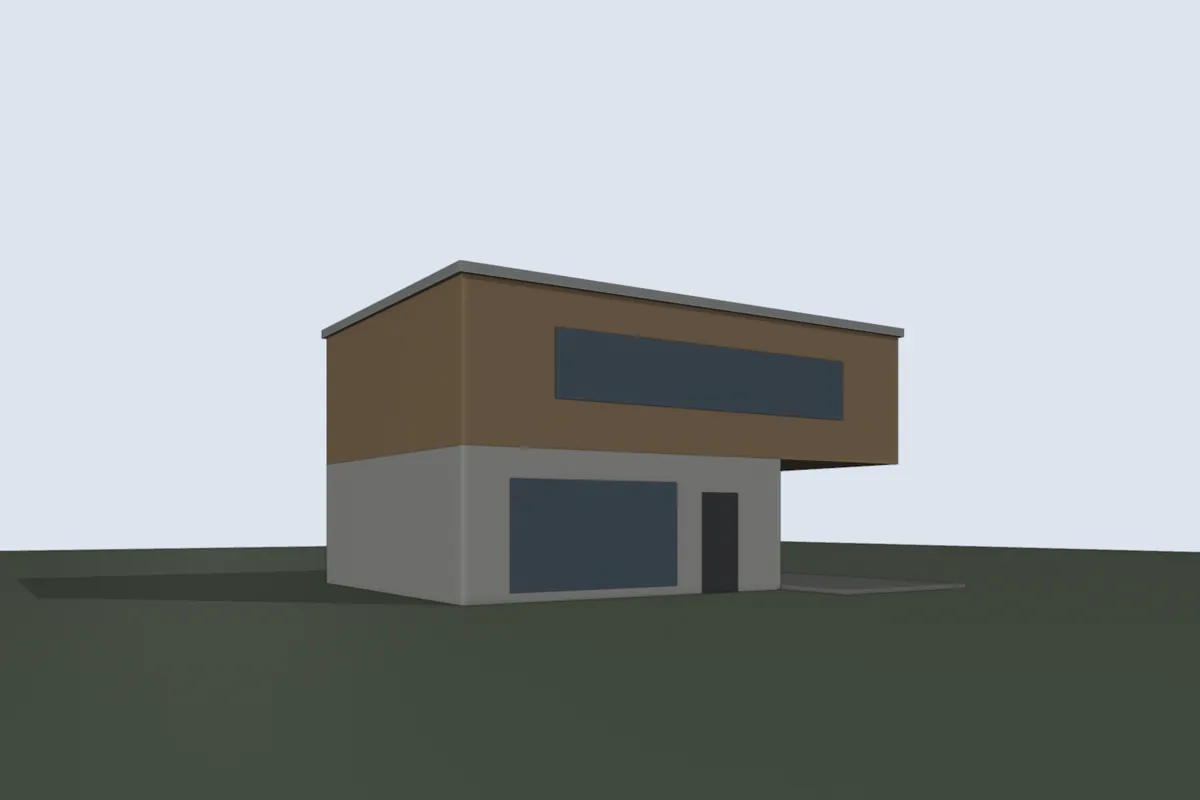
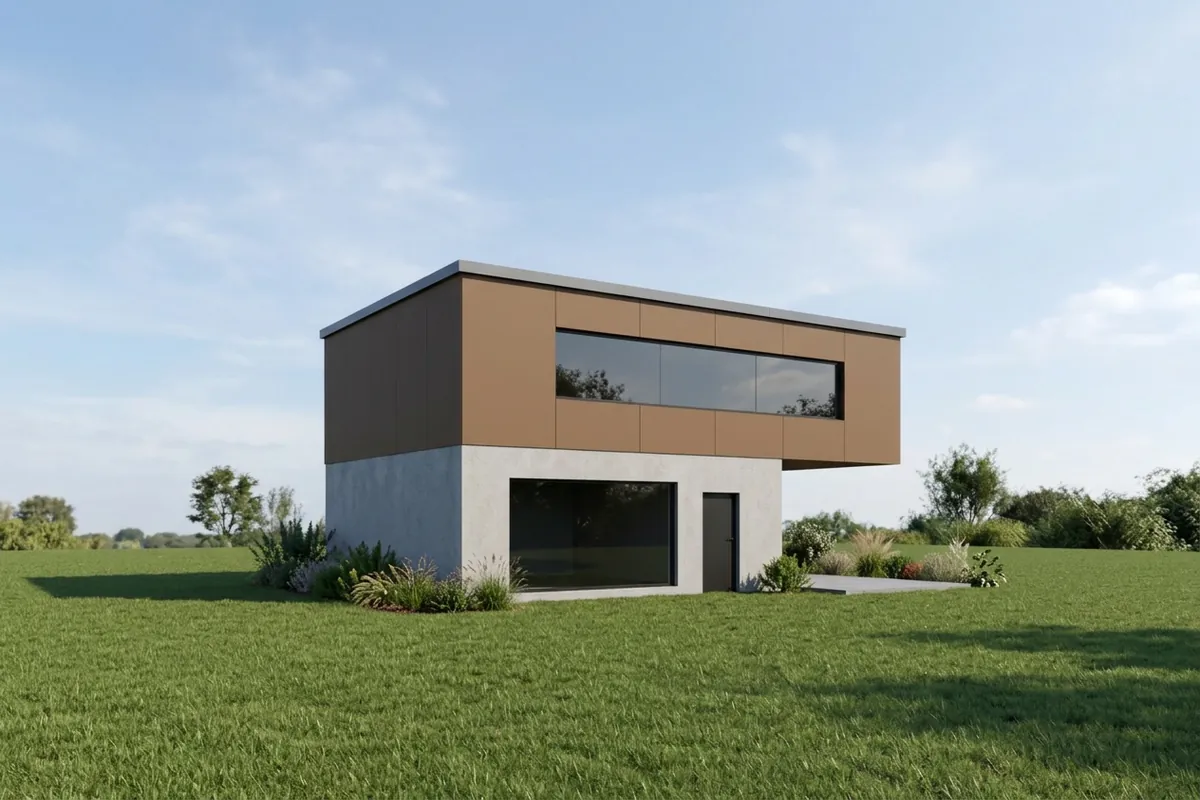
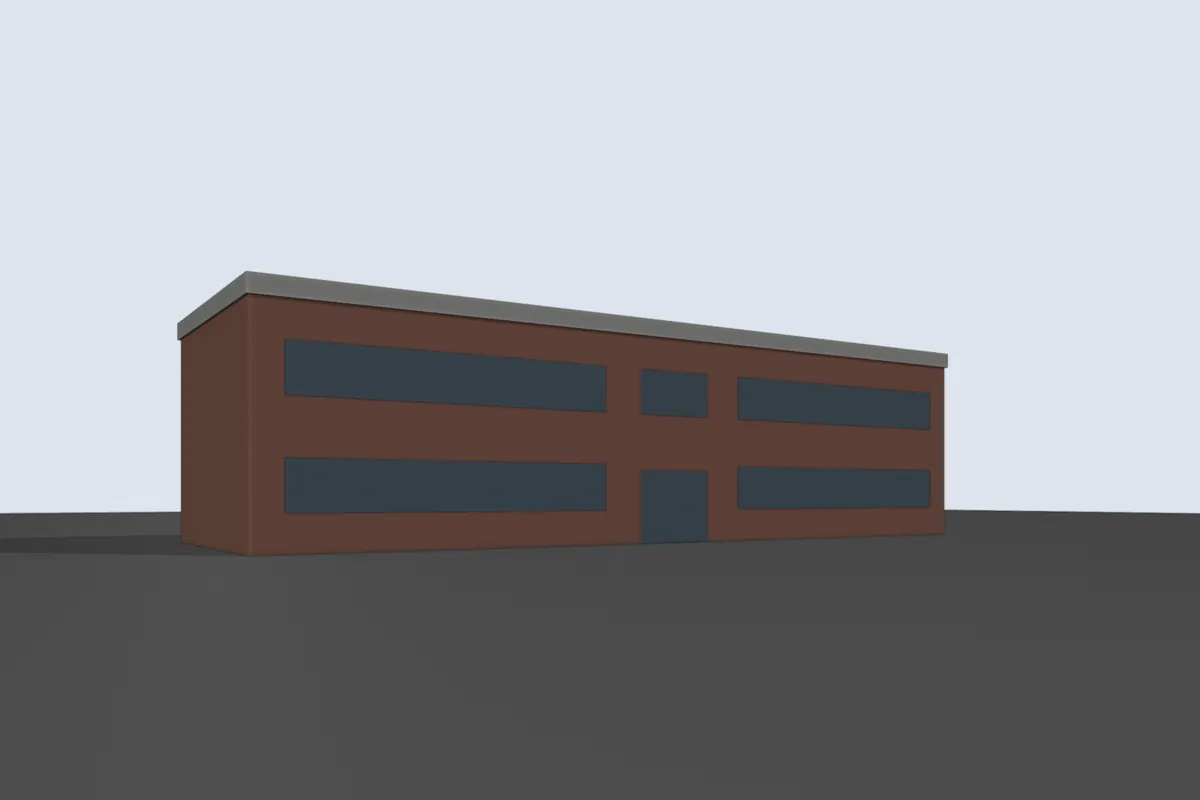

Set the colour in each material's Viewport Display panel. You don't need textures or node setups. Brick red became brick, warm brown became timber, light grey became concrete or render, dark blue-grey became glass.
Keep glass dark and name it
Windows that are the same grey as the walls are easy for any model to lose. Give glazing a dark grey or dark blue viewport colour so it reads as an opening. Partilock also checks windows and doors against your scene, so name glass materials "glass" and door objects "door".
Furniture blocks are fine
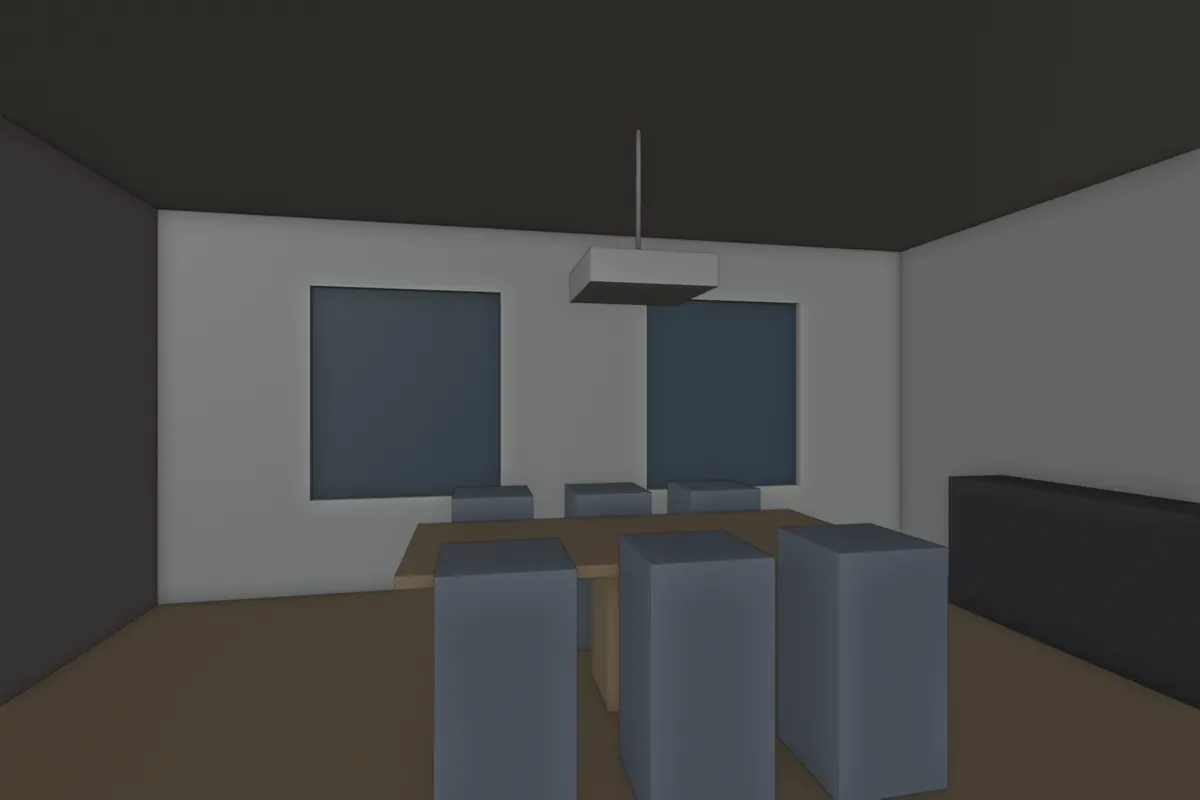
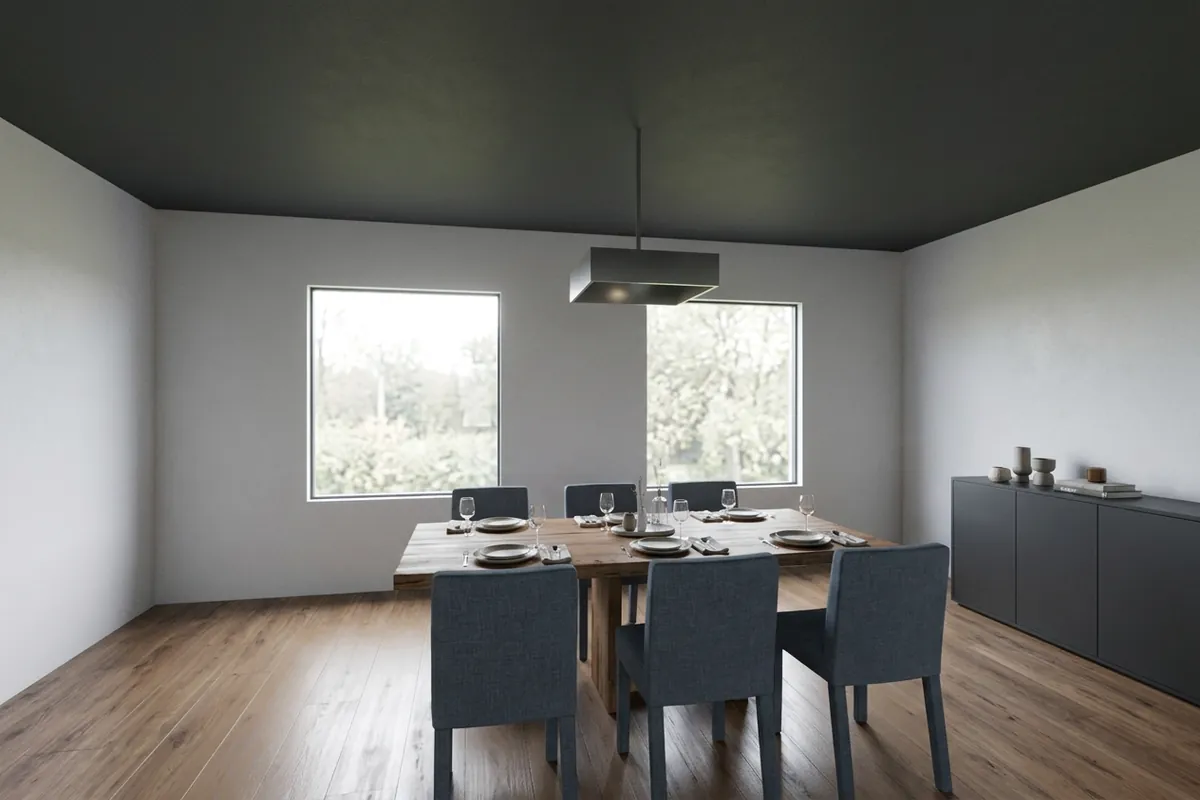
Plain boxes around a table came back as chairs, because the room was called a dining room. Typing the room type helps a lot. A rough chair shape is safer than a cube if the furniture matters.
Model what you want to keep
Image models add what real buildings usually have. That means the odd gutter, step, railing or entrance canopy. If your design has a canopy, model it. If it doesn't, check the entrance in the render. Partilock tells the model to leave these out and checks every render. More on what can change.
Ground, trees and cars
A ground plane helps the model place the building. Name it "ground". Trees and cars from an asset library are fine, named "tree" and "car" so the check doesn't treat them as part of the building.
Next up, the full viewport to concept render workflow, or see the same models at day and dusk.