Does an AI render change your building?
Sometimes, yes. An AI render can drop a storey, turn a window into a wall or add a canopy your model doesn't have. Here is what to look for and how to catch it before a client does.
What can change
The camera stays put, because the model gets a depth image. The building is harder, and the changes are easy to miss at a glance because the render looks good.
A tower lost two storeys
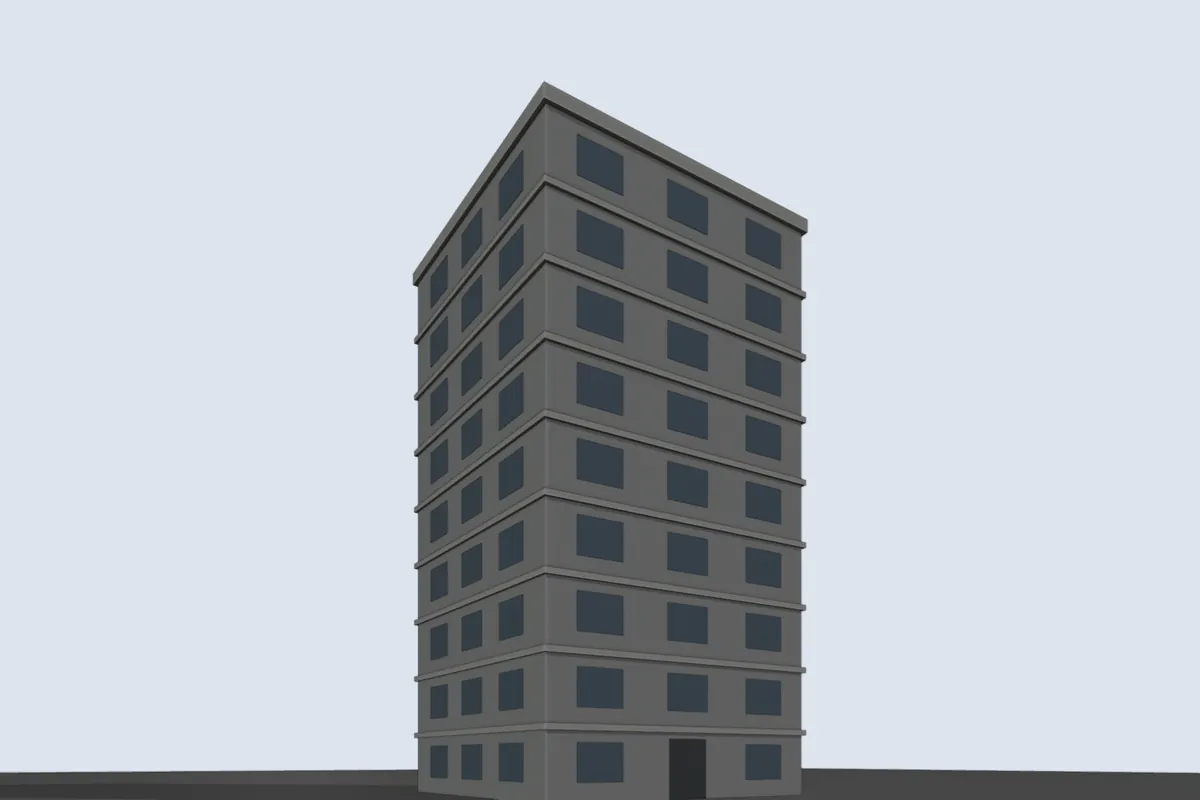
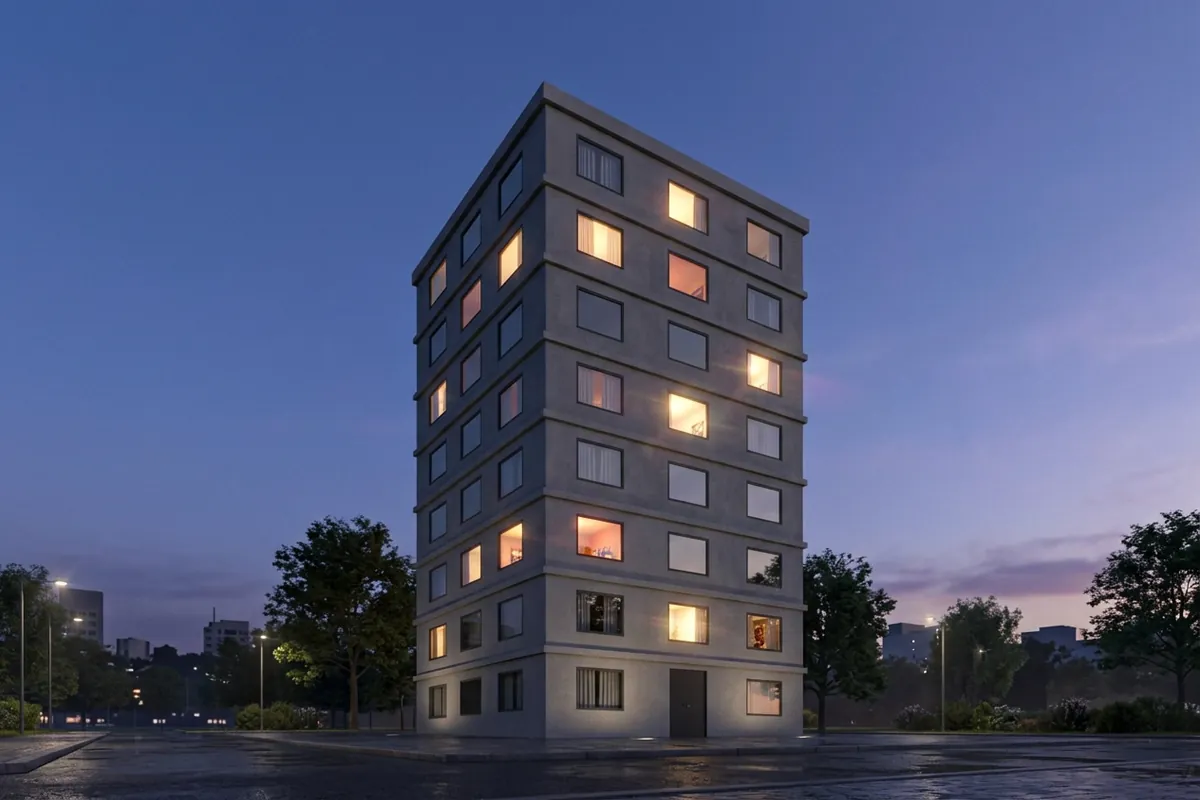
Count the window rows. The model has more than the render, and the floor bands are spaced out to cover the gap. It still looks like a believable tower, which is the problem.
A window became a wall
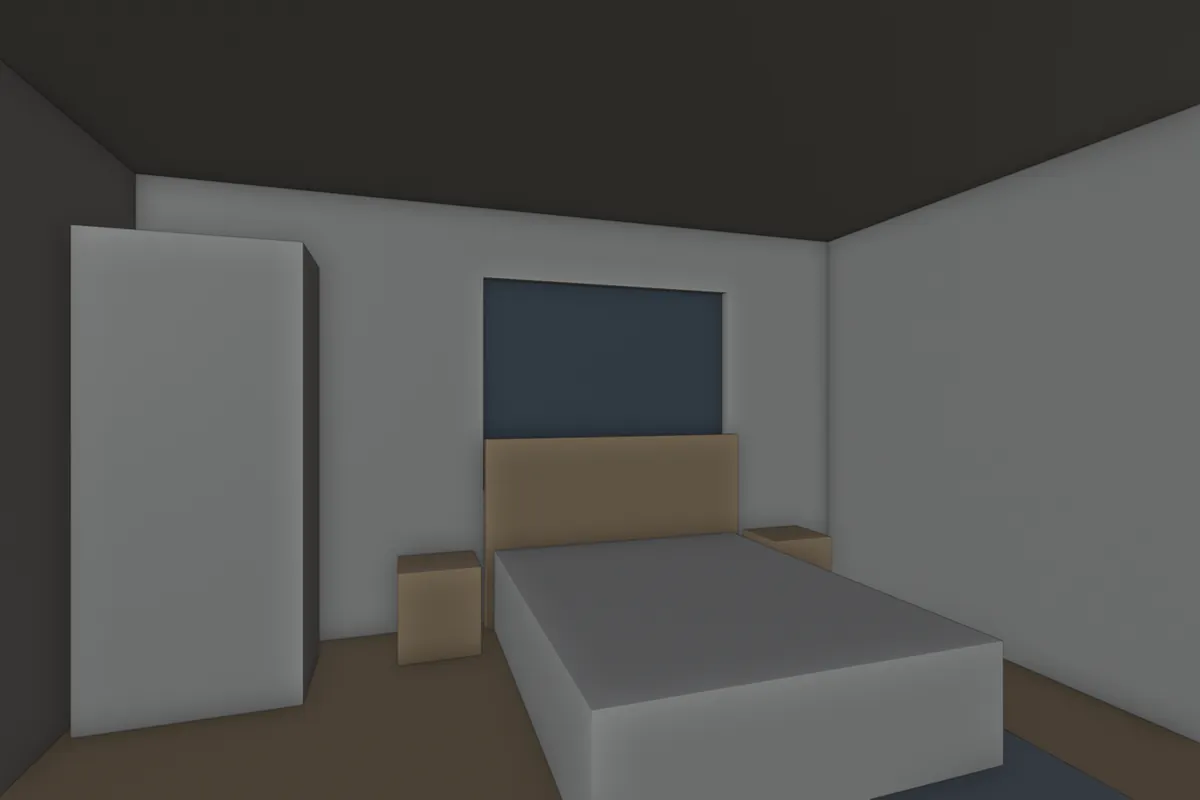
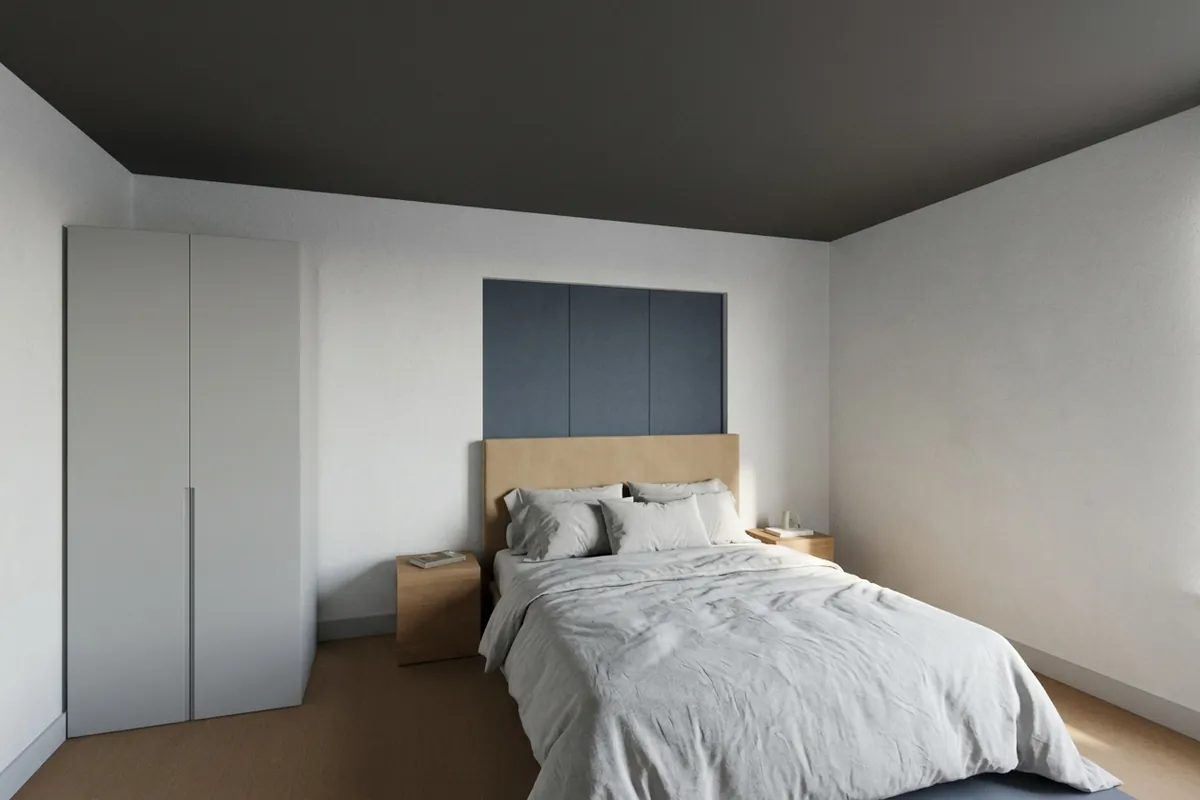
The only window in the room came back as panelling behind the bed. A client would plan furniture around a room with no daylight.
Canopies, gutters and railings

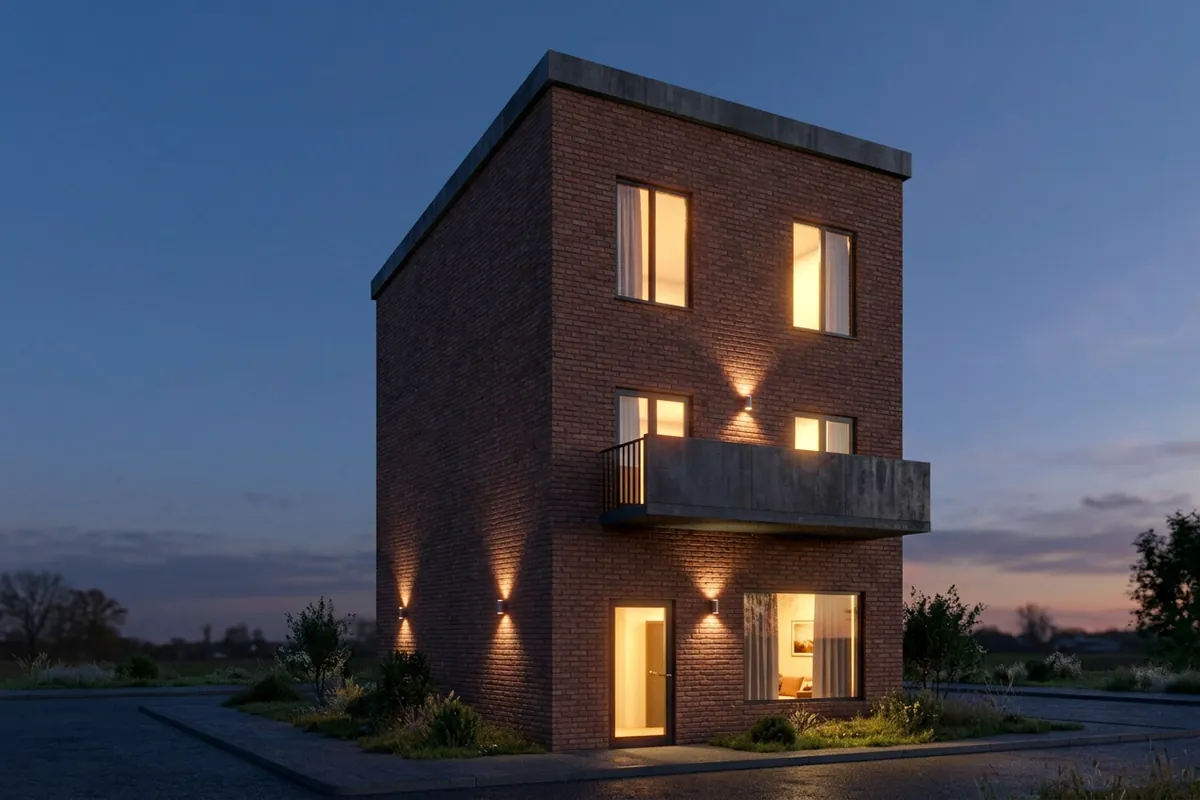
Small additions are the most common change, such as an entrance canopy, a gutter and downpipe, an extra terrace step or a balcony railing. Image models add the things real buildings usually have.
Partilock tells the model to leave out gutters, downpipes, steps, railings, canopies and trims unless they are modelled. The add-on can still add a small fitting.
How to check a render yourself
Whatever tool you use, these checks take about a minute and catch most of the changes above.
- Overlay it on the camera. In Blender, select the camera, open Camera properties and add the render under Background Images. Set opacity to about 0.5 and look through the camera (Numpad 0) in wireframe. Every edge of your model should sit on an edge of the render.
- Count storeys and window rows on each face, top to bottom. Lost or extra floors are the change people miss most.
- Count openings. Windows and doors per wall. Check that a door is still a door and a window is still glass.
- Read the roofline. Gable, hip, flat and mono-pitch should match. A dark gable face in a grey model can be misread as a hip roof.
- Look at the base and the entrance. That's where steps, planters, canopies and low walls appear.
How Partilock checks every render
Partilock runs a check like this on every render before you see it. It compares the render with your model's silhouette and with the window and door openings it reads from your scene. A second AI check counts storeys, windows, doors and the roof type in both images.
- A flagged render is retried once. If the retry is flagged too, you see it and you aren't charged.
- A false flag costs a retry, never a credit.
- If something slips past it, Re-render free sits under every result.
The output is an image, not geometry. It's a concept draft for a client meeting, so look before you send it.
Try it on your own model. Install the add-on and render your camera view. More on the image models in three AI image models compared.