From the Blender viewport to a concept render
Most of the work in a quick concept render happens before you click anything. That means a good camera, the right aspect and sensible colours. Here it is step by step.
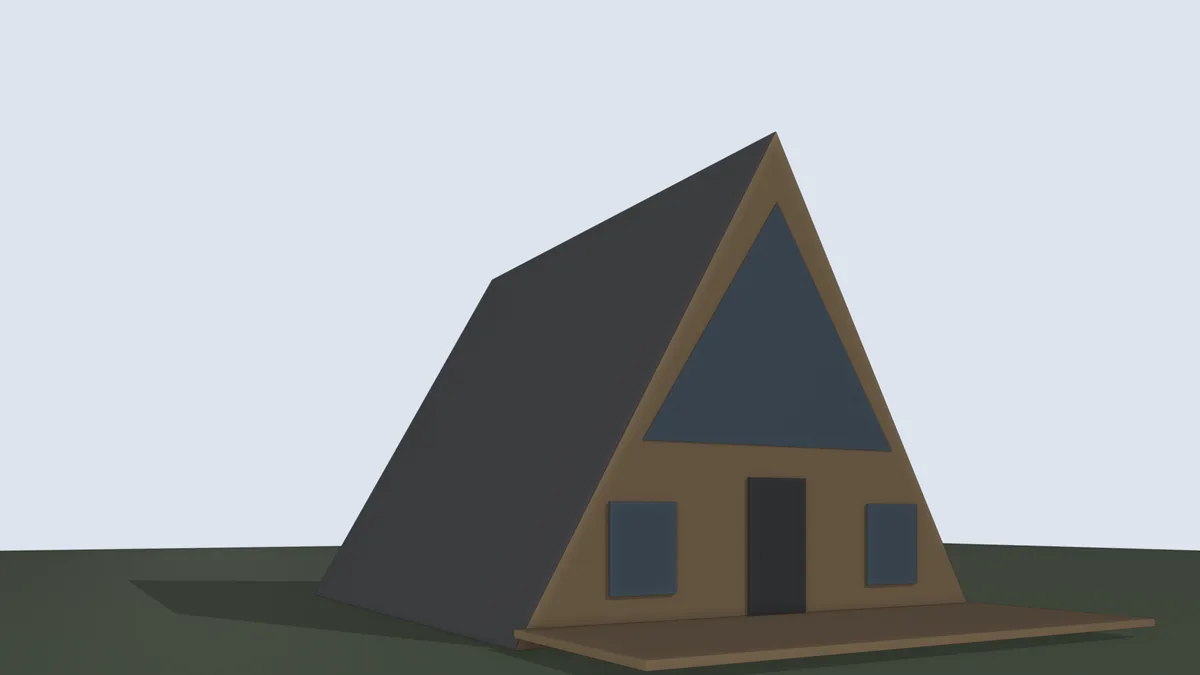
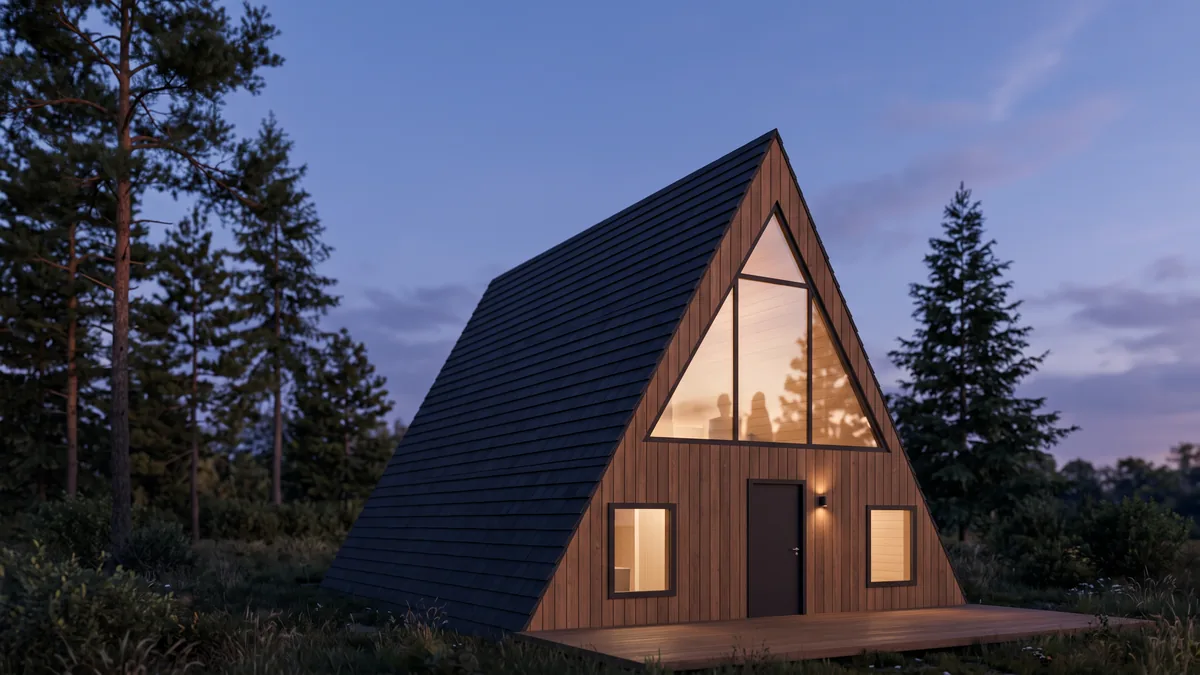
1. Set up the camera
- If the scene has no camera, add one with Add > Camera.
- Look through it with View > Cameras > Active Camera (Numpad 0). To move it like the viewport, open the sidebar's View tab and tick Camera to View under View Lock. Frame the shot, then untick it.
- Keep verticals vertical for exteriors. Point the camera level and use Shift in the camera's lens settings to move the building up or down in the frame instead of tilting.
- Use a normal lens. Something between 24 and 35 mm on a full-frame sensor reads like an architectural photo. Very wide lenses stretch the corners, and an AI model will happily "fix" what looks wrong.
2. Pick a standard aspect
Set the resolution in Output Properties. 16:9 (1920 × 1080) and 3:2 (1800 × 1200) work best for exteriors, 4:3 for rooms. Image models return a fixed set of shapes, so an odd aspect gets cropped or padded. Partilock warns you when the camera aspect isn't 3:2, 16:9, 4:3 or 1:1.
3. Give the model rough colours
The AI reads colours from the viewport, so a hint goes a long way. You don't need real materials. In each material, open Viewport Display and set the colour, then check the result in Solid mode with Material colour.
- Brick red on walls becomes brick. Warm brown becomes timber. Light grey becomes render or concrete.
- Dark grey or dark blue in window openings reads as glass.
- Leave everything grey and the AI picks plausible materials for you. That's fine for massing studies, less so for a specific design.
More detail and examples are in clay models for AI renders.
4. Name the parts that matter
Partilock reads your scene to check the render afterwards, so a few names help it:
- Glass materials named "glass" (or using transmission), so windows count as openings.
- Door objects named "door".
- Ground, trees and cars named "ground", "tree" and "car", so they aren't counted as the building.
5. Pick a preset and render
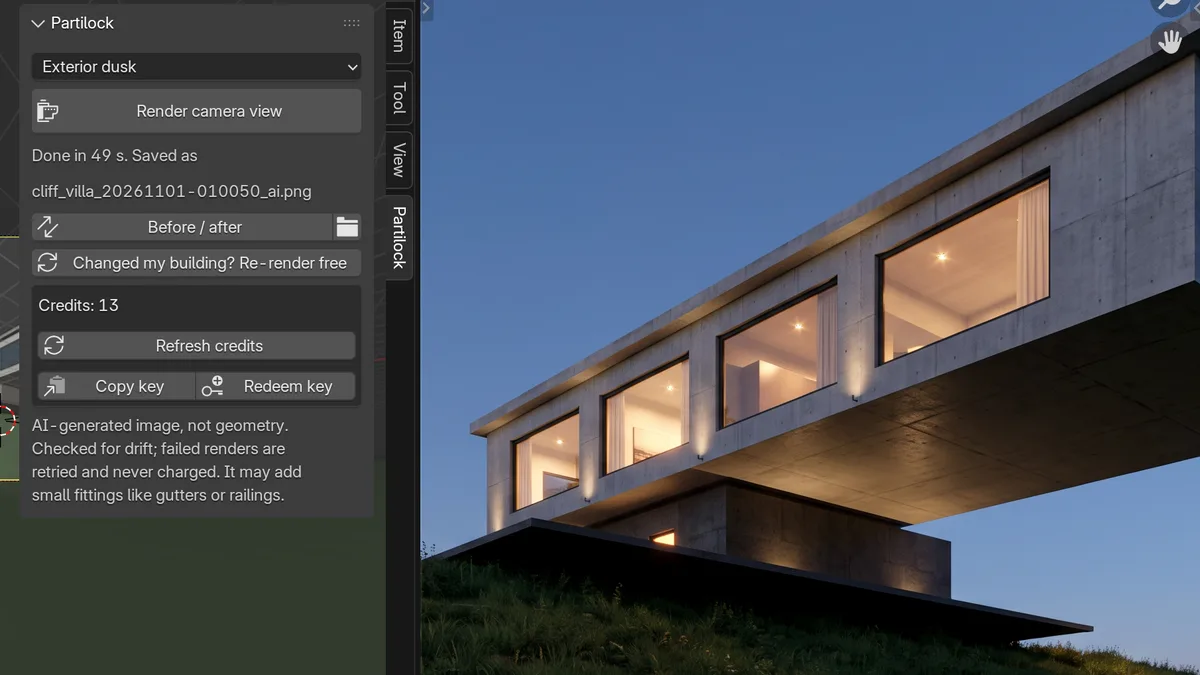
- Press N over the 3D viewport and open the Partilock tab.
- Pick Exterior day, Exterior dusk, Interior day or Interior dusk. For rooms, type what the room is, for example "kitchen" or "meeting room". It changes the furniture a lot.
- Click Render camera view. It sends the camera view, a depth image and masks of the building and its openings. Blender stays usable while it works, and a render usually takes about a minute.
- The result opens in the Image Editor and is saved in a
partilockfolder next to your .blend. Before / after flips between the viewport and the render.
6. Check it before it goes to a client
Every render is checked for drift against your model, and a failed one is retried and never charged. Still, look at it yourself. Count storeys and openings, read the roofline, look at the entrance. Here's what can change and how to spot it. If something moved, Re-render free is under the result.
Without AI, a quick clay image
For a plain massing image, Blender does it in seconds with no add-on:
- In Solid mode, open the Viewport Shading popover. Set Lighting to Studio, Color to Single or Material, and tick Shadow and Cavity.
- Look through the camera and choose View > Viewport Render Image.
- Save it from the Image Editor with Image > Save As.
That gives you a clean diagram. A client usually reads a lit, furnished image faster than a grey one, which is the gap an AI render fills. For final visualisation you still want a proper Cycles or EEVEE scene.
Try it on your own model. Install guide, pricing, and more examples in day vs dusk.